
MoneyByte Points
- Matching connectors do not guarantee matching capabilities. USB-IF certifies cables for different purposes.
- USB-IF’s current certification requirements distinguish charging capacity from data speed: USB-C–to–USB-C cables carry 60W or 240W power markings, with additional speed markings except for USB 2.0 cables.
- A certified cable cannot add capabilities that your computer or connected device lacks.
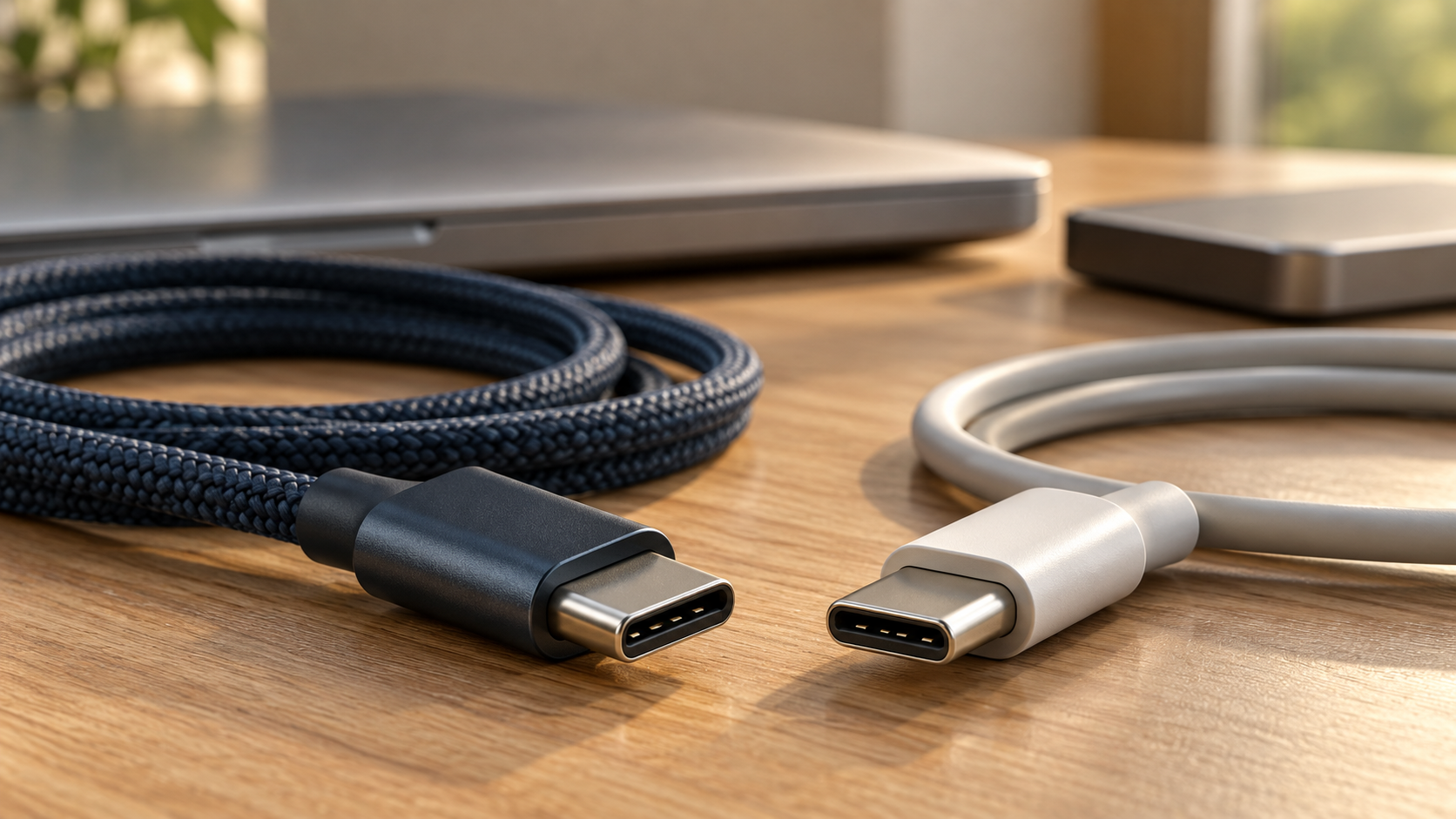
Buying a USB-C cable should be straightforward. Yet two cables with nearly identical plugs can serve very different purposes. One may be suitable for charging a laptop while offering limited data performance. Another may support a demanding storage or display connection.
The useful buying question is what you need the connection to do. Start with that task, then check power, data, and video specifications separately.
Start with the job, not the connector
Write down the devices you want to connect and the result you expect: charge a phone, copy project files to an external drive, or connect a laptop to a monitor.
Then consult the devices’ specifications. A cable advertised with a high maximum capability cannot upgrade the equipment attached to it. The USB-IF cable certification guidance explicitly notes that certification does not augment a product’s capabilities.
Treat the connector’s shape as the first compatibility check. The remaining checks determine whether the purchase will solve your problem.
Read charging watts separately from data speed
Watts describe power capability. They do not describe how quickly a cable transfers files.
Under USB-IF’s current certification rules, USB-C–to–USB-C cables must display a 60W or 240W power marking. Cables other than USB 2.0 also require an appropriate data-rate marking. These are certification-program requirements, not a claim that every cable already in someone’s drawer carries those labels.
For charging, check the device’s power requirements and the charger’s supported output. A higher-rated cable does not force a device to accept its maximum wattage. USB Power Delivery supports negotiated power, allowing connected devices to request what they need within the system’s capabilities.
USB PD Revision 3.1, announced in 2021, extended supported power delivery up to 240W. That is a supported maximum with compatible equipment, not a promise that any USB-C charger will deliver it.
For storage, look for the stated data rate and compatible interfaces on both devices. A prominent charging-wattage claim leaves the data-speed question unanswered.
Check monitor support across the connection
A laptop charging through a cable does not establish that the same connection can drive a monitor.
One common video path is DisplayPort Alternate Mode. VESA’s DisplayPort overview explains how it carries DisplayPort video through the USB-C interface.
Before buying, check the laptop port’s documented video support, the monitor’s input requirements, and the cable’s advertised display compatibility. Include any dock or adapter in that check.
Record your desired resolution and refresh rate. A vague “supports video” description provides less useful buying information than explicit compatibility with your intended setup.
Compare cables by your actual use
Use this table to organize the specifications worth checking:
| Intended use | Check first | Do not assume |
|---|---|---|
| Phone or tablet charging | Device charging requirements, charger compatibility, cable power rating | The largest wattage means faster charging |
| Laptop charging | Required power and supported charger output | Every USB-C charger can meet the laptop’s needs |
| External storage | Cable data rate and supported interfaces at both ends | High charging wattage implies fast transfers |
| Laptop-to-monitor connection | Video support, resolution, refresh rate, and any adapter requirements | A fitting connector guarantees a picture |
| One-cable desk setup | Charging, display, and peripheral requirements together | One headline specification covers every function |
This is a selection framework, not a ranking of particular products. Choose a USB-C cable whose documented capabilities match the complete task.
For more guides to evaluating technology purchases, explore Money Byte’s technology coverage.
Verify the model before checkout
Check the exact model and length offered by the seller. Save the manufacturer’s specification page so you can compare the delivered product against the advertised capabilities.
If certification is claimed, consult the USB-IF product search. Its listings cover products certified to bear the USB-IF logo, but the default display includes only the most recent two years. Use the date filter for older entries; if a product is absent, ask the manufacturer for clarification rather than treating absence alone as proof of failure.
Before ordering, confirm five details:
- Exact product model and cable length.
- Supported charging power.
- Stated data rate.
- Display compatibility, when needed.
- Warranty and return terms.
After delivery, test the cable with your intended devices while the return window remains open. Check the actual task: charging, transferring files, or running the display.
Your next step: write down the power, data, and display requirements for your setup before comparing prices. For more practical buying guides, subscribe to Money Byte.
Fact-check note — October 15, 2026: Checked against USB-IF certification, Power Delivery, and product-directory guidance, plus VESA’s DisplayPort explanation. VESA’s older power figures were not used as current limits. No products were physically tested; compatibility requires checking exact device specifications.
Leave a Reply